▶ Click here for information in English.
お知らせ(更新日:2026年10月7日)
- 証明書発行サービスは下記の期間メンテナンスのため稼働を停止いたします。
2026年11月13日(金)16:00 ~ 2026年11月16日(月)23:59
- 2026年6月1日より、コンビニにて満期退学証明書(和文・英文)および単位等認定書(和文・英文)の出力が可能となりました。
満期退学証明書は、博士後期課程を満期退学した方のみ発行可能です。
単位等認定書は、医学系研究科博士課程を満期退学した方のみ発行可能です。
本学を卒業(修了、終了)した方の各種証明書発行
証明書発行の流れ
- 名古屋大学の学部/研究科を卒業・修了された方々の各種証明書の申請手続きについては証明書発行サービス(卒業生用) からオンラインで証明書発行申請を行います。
- 証明書発行サービス利用には初回利用登録が必要です。詳細はログインマニュアル(卒業生用)をご覧ください。
※在学当時と氏名が異なる場合は,その事実が確認できる書類(例:戸籍抄本,年金手帳等)を用意し,ログイン申請時の「本人確認用ファイル>本人確認用書類の画像」に追加で添付してください。なお,証明書は在学時の氏名で発行されます。
※初回利用登録後、申請いただいた内容確認を行うため、証明書の発行申請が可能になるまで1~2営業日程度要します。
※申請いただいた内容に対して本学から照会を行わせていただく場合がございます。
- 証明書は下記の方法でお受け取りが可能です。
・窓口受取(大学の各部局教務窓口での受取、申請者本人のみ受け取り可能)
・コンビニエンスストア(セブンーイレブン、ファミリーマート、ローソン)
入学年度によってはコンビニでの発行ができない場合がございます。コンビニでの発行の可否はこちらをご確認ください。
コンビニで出力可能な証明書は「コンビニで出力できる証明書について」の項目をご確認ください。
・郵送
※郵送、窓口受取については、コンビニで出力できない証明書が必要な場合に指定してください。
※操作に関する詳細なマニュアルは証明書発行サービスにログイン後、メニューボタン(画面上部の歯車マーク)からご確認をお願いいたします。
※PDF版の「証明書発行の流れ」はこちら
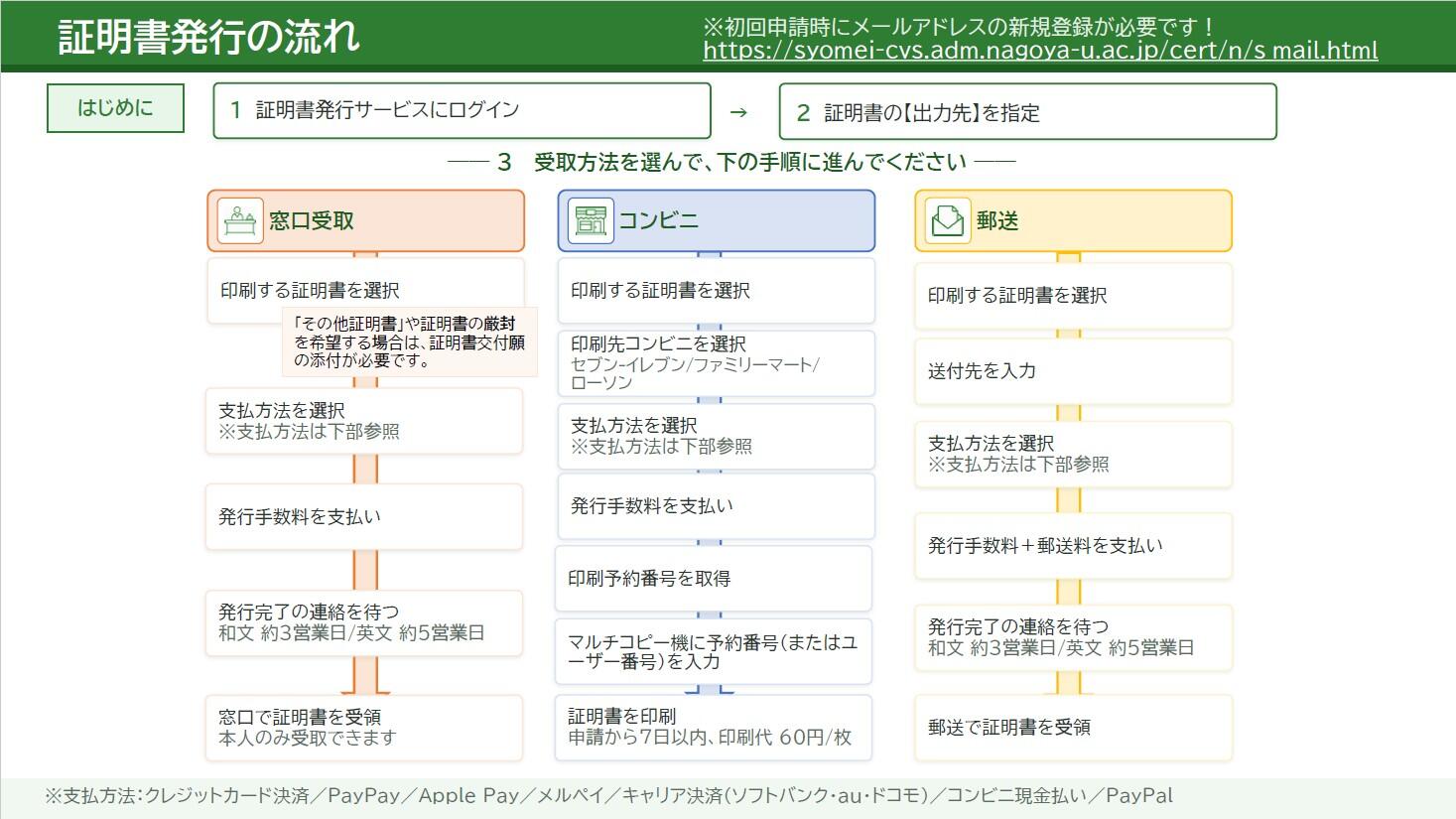
+ 初回利用登録手順
1.
証明書発行サービスにアクセスし、画面下の「新規登録手続き」ボタンをクリックします。
2. 登録するメールアドレスを「メールアドレス」欄、および「確認」欄に入力します。
3. 「注意事項」の内容を確認し、「確認」ボタンをクリックします。
4. 画面にメッセージが表示され、登録したメールアドレス宛に確認通知が届きます。メール本文にあるワンタイムURLをクリックします。
5. 画面に表示された「利用許諾」を確認し、「上記内容に同意する」にチェックを入れ、「同意する」ボタンをクリックします。
6. 「申請者情報」を入力し、申請を実施します。
※在学当時と氏名が異なる場合は,その事実が確認できる書類(例:戸籍抄本,年金手帳等)を用意し,ログイン申請時の「本人確認用ファイル>本人確認用書類の画像」に追加で添付してください。なお、証明書は在学時の氏名で発行されます。
※新規登録後、申請いただいた内容確認を行うため、証明書の発行申請が可能になるまで1~2営業日程度要します。
※申請いただいた内容に対して本学から照会を行わせていただく場合がございます。
7. 本学担当者が申請内容を確認後、利用申請結果が登録したメールアドレス宛に届きます。メールに記載された「初回パスワード」を確認します。
8. メール本文にある「ログインはこちらから」のURLをクリックし、ログイン画面へアクセスします。
9. 登録したメールアドレスを「メールアドレス」欄に、利用申請結果のメールに記載された初回パスワードを「パスワード」欄に入力し、ログインボタンをクリックします。
※「第2パスワード」は、空欄のまま進んでください。
10. 「パスワード設定」画面に遷移するので、初回パスワードの変更、および第2パスワードの設定をしてください。設定完了後、証明書発行サービスがご利用になれます。
+ 窓口受取での受取手順
2. 登録した「メールアドレス」、「パスワード」、および「第2パスワード」を入力し、ログインします。
3. 「証明書を発行」から「窓口受取」を選択します。
4. 「申請証明書選択」から、申請する証明書の部数をプルダウンより選択し、申請します。
※「窓口受取」で「その他証明書」を申請される場合は、証明書交付願(窓口受取 その他証明書用)(
Excel ,
PDF)に必要な証明書種類、部数をご記入のうえ、申請をお願いいたします。ご記入いただいた
証明書交付願(窓口受取 その他証明書用)(
Excel ,
PDF)は申込オプションの「添付ファイル」画面からアップロードをお願いいたします。添付ファイルは、jpeg、PDF、xlsx形式としてください。
※和文証明書の発行には3営業日、英文証明書の発行には5営業日ほどお時間を頂戴します。
5.お支払方法を選択し、発行手数料を支払います。
6.登録しているメールアドレス宛に証明書の受け渡しに関する連絡が入るまでお待ちください。
※窓口受取は申請者本人のみ受け取り可能です。本人確認可能な身分証をご持参ください。
※証明書発行後の部局教務担当窓口での保管期限は3か月です。
+ コンビニでの受取手順
2. 登録した「メールアドレス」、「パスワード」、および「第2パスワード」を入力し、ログインします。
3. 「証明書を発行」から「コンビニ」を選択します。
4. 「申請証明書選択」から、申請する証明書の部数をプルダウンより選択し、申請します。
※コンビニで出力可能な証明書は「
コンビニで出力できる証明書について」の項目をご確認ください。
5. 証明書の印刷を行うコンビニを選択します。(セブンーイレブン、ファミリーマート、ローソン)
※選択した以外のコンビニのマルチコピー機からは印刷できませんのでご注意ください。
6. お支払方法を選択し、発行手数料を支払います。
7. 登録メールアドレス宛に、「印刷予約番号」が送信されます。
8. コンビニエンスストアに設置してあるマルチコピー機に「印刷予約番号」を入力します。
※印刷予約番号取得後、7日以内に証明書を印刷してください。8日目の深夜0時をすぎた時点で証明書の印刷ができなくなり、手数料の返金もございません。
※一部の店舗では、マルチコピー機が設置されていない、ネットワークプリントサービスに対応していない場合がございます。
※コンビニのマルチコピー機で印刷する際に、別途印刷代60円/枚が必要となります。
+ 郵送での受取手順
2. 登録した「メールアドレス」、「パスワード」、および「第2パスワード」を入力し、ログインします。
3. 「証明書を発行」から「郵送」を選択します。
4. 「申請証明書選択」から、申請する証明書の部数をプルダウンより選択します。
※和文証明書の発行には3営業日、英文証明書の発行には5営業日ほどお時間を頂戴します。
5. 郵送先の情報等を入力します。
※厳封を希望される場合は、「郵送オプション」の「厳封」の「希望する」にチェックを入れてください。
※国際スピード郵便(EMS)での送付を希望される方については、国際郵便の差出可否について、あらかじめ日本郵便株式会社のホームページにてご確認のうえ、お申込みください。日本郵便ホームページは
こちらからご覧いただけます。なお、国際スピード郵便(EMS)の差出が不可となっている国あての送付申請については、返金対応いたしかねますのでご了承ください。
6. お支払方法を選択し、発行手数料と郵送料を支払います。
7. 登録メールアドレス宛に、郵送申請の受付完了メールが届きます。証明書がご指定の住所に届くまでお待ちください。
証明書発行手数料について
証明書発行手数料は以下のとおりです。
| 受取方法 |
発行手数料 |
窓口受取
各部局教務窓口での受取 |
1枚あたり800円 |
| コンビニ発行 |
1枚あたり800円
マルチコピー機利用時に別途印刷代60円/枚が発生
|
| 郵送 |
1枚あたり800円
別途郵送料(封筒代等を含む発送手数料)が発生
|
- 一度お支払いただいた料金の払い戻しはできませんのでご注意ください。
- 証明書発行サービスでは領収証の発行は承っておりません。あらかじめご了承ください。
- コンビニから出力できない証明書の申請については事前に教務担当窓口までお問い合わせください。
コンビニで出力できる証明書について
コンビニのマルチコピー機からは以下の証明書が発行可能となります。
・学位証明書(和・英)
・学業成績証明書(和・英)
・満期退学証明書(和・英)※博士後期課程を満期退学した方のみ発行可能。
・単位等認定書(和・英)※医学系研究科博士課程満期退学者のみ発行可能。
※入学年度によってはコンビニでの発行ができない場合がございます。コンビニでの発行の可否はこちらをご確認ください。
※本学では、卒業証明書および修了証明書は発行しておらず、これらに代わる証明書として「学位証明書」を発行しております。「学位証明書」には、卒業・修了したことに加え、取得した学位の名称および学位記番号が記載されています。卒業証明書または修了証明書の提出を求められている場合は、「学位証明書」の発行をご申請ください。「卒業証明書」および「修了証明書」の名称による証明書の発行は行っておりませんので、あらかじめご了承ください。
※上記以外の証明書がこれ以外証明書が必要な場合には、事前に各学部/研究科の教務担当窓口にご相談ください。
注意事項
+ 大学院博士課程の表記統一について
本学では、平成30年4月1日から、大学院博士課程の前期2年の課程を博士前期課程と、後期3年の課程を博士後期課程と表記及び呼称を統一しています。
入学年度によっては、発行される証明書上の表記が在籍時と異なる場合があります。
また、平成7年度以前入学者の学業成績証明書等は、紙媒体の記録の写しを証明書として提供していますので、在籍時の表記で発行されます。不利益が生じるおそれがある場合は証明書申請の際にご相談ください。
※医学系研究科修士課程及び博士課程、専門職学位課程は変更ありません。
※博士課程前期課程や博士課程後期課程と表記していた部局があります。
+ 卒業証明書・修了証明書に代わる証明書について
本学では卒業証明書・修了証明書は「学位証明書」の発行で代えております。
「学位証明書」は卒業・修了したことに加えて学位取得したこと、学位の名称、学位番号が併せて記載されています。
卒業証明書・修了証明書が必要な方は「学位証明書」を発行依頼してください。卒業証明書、修了証明書という名称での証明書の発行は行いません。
+ 厳封について
厳封については証明書提出先より指示された場合にのみご依頼ください。
(厳封とは証明書の入った封筒に厳封印を押印し、密封することです。厳封済みの証明書は、ご自身で証明書の内容が確認できなくなります。)
厳封を希望される場合は、「郵送」もしくは「窓口受取(その他証明書)」から申請をお願いいたします。
※「窓口受取」で「その他証明書」を申請される場合は、証明書交付願(窓口受取 その他証明書用)(Excel , PDF)に必要な証明書種類、部数をご記入のうえ、申請をお願いいたします。ご記入いただいた証明書交付願(窓口受取 その他証明書用)(Excel , PDF)は申込オプションの「添付ファイル」画面からアップロードをお願いいたします。厳封を希望される場合は、申請書の「備考欄」に記載をお願いいたします。
+ 外務省(外務本省及び在外公館)への提出について
外務省では偽造防止の透かしの入った証明書しか受け付けていないため、外務省へ提出する証明書については学内発行機、コンビニのマルチコピー機は利用せず、申請時に「郵送」「窓口受取」での受け取りを選択してください。
+ 窓口受取での「その他証明書」の申請方法について
窓口で「その他証明書」を受け取る場合は、証明書交付願(窓口受取その他証明書用)(Excel , PDF)に必要な証明書種類、部数をご記入のうえ、申請をお願いいたします。ご記入いただいた証明書交付願(窓口受取 その他証明書用)(Excel , PDF)は申込オプションの「添付ファイル」画面からアップロードをお願いいたします。添付ファイルは、jpeg、PDF、xlsx形式としてください。
+ 問い合わせ
- オンライン証明書発行サービス及び支払い方法に関するお問い合わせ先:
証明書発行サービスコールセンター(24時間対応):06-6809-4327
- 証明書に関するお問い合わせ先:
各学部・研究科の教務担当窓口にお尋ねください。こちらに連絡先を掲載しています。
※・e-mailは末尾に@(at)t.mail.nagoya-u.ac.jpを足してください。
※お電話による問い合わせの対応時間は平日10:00~17:00です。
証明書を受け取られた方へ(企業の採用担当者の方へ)
コンビニのマルチコピー機から出力した各種証明書には、POPITAの技術により偽造防止が施されています。
POPITAによる真正性の確認方法はこちらをご覧下さい。
※2025/7/1以降、「POPITA」アプリは使用できなくなります。ブラウザから「POPITA」へアクセスしてください。
Notification (Last Updated: October 7, 2026)
- he Certificate Issuance Service will be unavailable during the following period due to scheduled maintenance.
Maintenance Period:
November 13, 2026 (Fri.), 4:00 p.m. – November 16, 2026 (Mon.), 11:59 p.m.
- Starting June 1, 2026, Certificates (All but dissertation) (JP/EN) and Certificates of Expected Fulfillment(JP/EN) will be available for printing at convenience stores.
Certificates (All but dissertation) (JP/EN) are issued only to individuals who have completed the doctoral program without obtaining a degree.
Certificates of Expected Fulfillment(JP/EN) are issued only to individuals who have completed the Doctoral Program in the Graduate School of Medicine without obtaining a degree.
【For Alumni】 Information about Certificates
Application Process for Certificate Issuance
- For those who have graduated or completed their undergraduate or graduate studies at Nagoya University, you can apply for various certificates online through Certificate Issuance Service (for alumni ).
- Initial registration is required to use the service. For details, please refer to the Login Manual (for Graduates)
※If your current name differs from the name you used while enrolled at the University, please provide a document verifying the name change (such as a family register extract or pension book) and upload it as an image of your identification document.
※After completing a new registration, it may take 1 to 2 business days before you can apply for certificate issuance, as the University needs time to verify the information provided in your application.
※Please note that the University may contact you for clarification or verification regarding the information provided in your application.
- Certificates can be received by the following methods.
・University Counter (Pick-up at the Student Affairs Office of your school/faculty,Only the applicant may collect the certificate. )
・Convenience store (7-Eleven, FamilyMart, Lawson)
・Sending by post
※Please select "Sending by post" or "University Counter" when you need a certificate that cannot be printed out from "Convenience store".
※For information on the certificates that can be printed at convenience stores, please refer to the section "Certificates Available for Printing at Convenience Stores."
※For detailed operating instructions, please log in to the Certificate Issuance Service and refer to the User Manual from the menu button (gear icon) at the top of the screen.
※Click here for the PDF version of the Certificate Issuance Process.
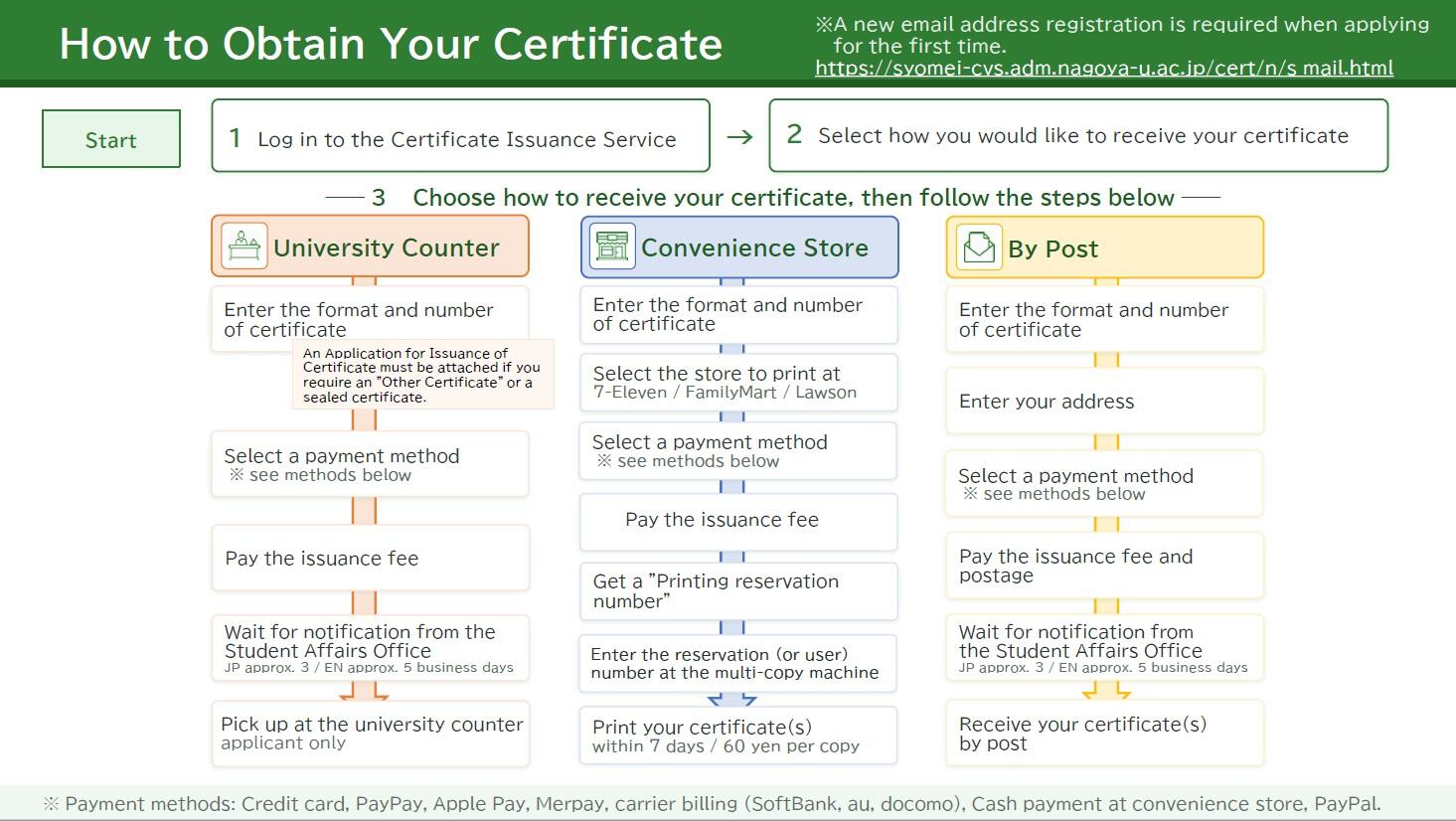
+ How to Complete Initial User Registration
1. Access the
Certificate Issuance Service and click the "New registration procedure" button at the bottom of the screen.
2. Enter the email address you wish to register in both the "Mail Address" field and the "Check" field.
3. Review the information under "Notes" and click the "Check" button.
4. A message will be displayed on the screen, and a confirmation email will be sent to the email address you registered. Click the one-time URL provided in the email.
5. Review the "Permission for use" displayed on the screen, check the box labeled "I agree with the above", and click the "Agree" button.
6. Enter the applicant information and submit the application.
※If your current name differs from the name you used while enrolled at the University, please provide a document verifying the name change (such as a family register extract or pension book) and upload it as an image of your identification document.
※After completing a new registration, it may take 1 to 2 business days before you can apply for certificate issuance, as the University needs time to verify the information provided in your application.
※Please note that the University may contact you for clarification or verification regarding the information provided in your application.
7.After the University reviews your application, the result of your registration request will be sent to the email address you registered. Check the "Initial password" provided in the email.
8. Click the URL for “Log in here” in the email body text to access the login screen.
9. For the “Mail address” field, enter the registered email address, and for the “Password” field, enter the initial password shown in the email announcing the application result.
※Leave the “Second password” field empty.
10. The Password Setting screen opens, where you can change the initial password and set the second password. Once the setup is complete, you will be able to use the Certificate Issuance Service.
+ Procedure for Receiving Certificates at the Student Affairs Office
2. Enter your registered "Email Address," "Password," and "Second Password," and then log in.
3. Select “Issue Certificate” and then choose “University Counter.”
4. Under “Select application certificate,” choose the number of copies you wish to apply for from the drop-down menu and submit your application.
※To receive “Other Certificates” at the university counter, Application for Issuance of Certificate[Pick up at the university counter for Other Certificates only](
Excel,
PDF)with the required certificate type and number of copies, and submit your application. Please upload the completed Application for Issuance of Certificate[Pick up at the university counter for Other Certificates only] (
Excel,
PDF)via the “Attachment” screen in the application options. Attachments must be in jpeg, PDF, or xlsx format.
※Please allow up to 3 business days for Japanese certificates and up to 5 business days for English certificates to be issued and made available for counter pickup or mailing.
5.Select a payment method and pay the certificate issuance fee.
6.Please wait until you receive a notification at your designated email address informing you that your certificate is ready for collection.
※Certificates can only be collected by the applicant in person. Please bring your student ID card when picking up your certificate.
※Certificates will be kept at the Student Affairs Office of each (Graduate) School for three months after issuance.
+ Printing Instructions for Convenience Store Multi-Function Copy Machines
2. Enter your registered "Email Address," "Password," and "Second Password," and then log in.
3. Select “Issue Certificate” and then choose “Convenience Store.”
4. Under “Select application certificate,” choose the number of copies you wish to apply for from the drop-down menu and submit your application.
※For information on the certificates that can be printed at convenience stores, please refer to the section "
Certificates Available for Printing at Convenience Stores."
5. Select the convenience store where you would like to print your certificate (7-Eleven, FamilyMart, or Lawson).
※Please note that certificates cannot be printed from multi-function copy machines at convenience stores other than the one you selected.
6. Select a payment method and pay the certificate issuance fee.
7. A “Printing reservation number” will be sent to your registered email address.
8. Enter the “Printing reservation number” on the multi-function copy machines installed at the convenience store.
※Please print your certificate within 7 days after getting "Printing reservation number" after midnight on the 8th day, you will not be able to print your certificate and the fee will not be refunded.
※Please note that some convenience store locations may not have a multi-function copy machines installed or may not support the Network Print Service.
※Please note that an additional printing fee of JPY 60 per page will be charged when printing certificates at a convenience store multi-function copy machines.
+ Procedures for Receiving Certificates by Mail post
2. Enter your registered "Email Address," "Password," and "Second Password," and then log in.
3. Select “Issue Certificate” and then choose “Sending by post.”
4. Under “Select application certificate,” choose the number of copies you wish to apply for from the drop-down menu and submit your application.
※Please allow up to 3 business days for Japanese certificates and up to 5 business days for English certificates to be issued and made available for counter pickup or mailing.
5. Enter the mailing address and other required information.
※If you would like your certificate(s) to be sealed in an official envelope, please check “Wished” for “Sealed up” under “Mailing Options.”
※If you wish to send certificates via International Express Mail Service (EMS), please check in advance on the Japan Post website whether EMS is available for your destination, and submit your application accordingly. You can access the Japan Post website from the link below.
https://www.post.japanpost.jp/int/index.htmlPlease note that we are unable to provide refunds for applications requesting EMS shipment to destinations where EMS services are not currently available.
6. Select a payment method and pay the certificate issuance fee and postage.
7. A confirmation email for your mailing request will be sent to your registered email address. Please wait until the certificate is delivered to the address you specified.
Certificate Issuance Fees
The applicable fees are listed below.
|
Methods of Receipt
|
Issuance Fee
|
|
University Counter
Pick-up at the Student Affairs Office of each (Graduate) School
|
800 yen / 1 copy |
| Convenience store |
800 yen / 1 copy
A separate printing fee of 60 yen will be charged when using a multi-copy machine for convenience store issuance.
|
| Sending by post |
800 yen / 1 copy
A separate Shipping fee (including envelope, etc.) will be charged.
|
- Once paid, fees are non-refundable.
-
Please note that receipts are not issued through the Certificate Issuance Service. Thank you for your understanding.
-
Please contact the Student Affairs Office in advance regarding applications for certificates that cannot be printed at convenience stores.
Certificates Available for Printing at Convenience Stores
The following certificates can be output on convenience stores.
・Certificate of Graduation (BA, MA, PhD) degree(JP/EN)
・Transcripts (JP/EN)
・Certificate (All but dissertation) (JP/EN)
※Available only to individuals who completed the doctoral program without obtaining a degree.
・Certificate of Expected Fulfillment(JP/EN)
※Available only to former students who completed the Doctoral Program in the Graduate School of Medicine without obtaining a degree.
※Please note that depending on the year of enrollment, the application may not be issued at convenience stores. Please check here for the availability of issuance at convenience stores.
※If you need other certificates, please contact the Student Affairs Division of each (Graduate) School in advance.
Notice
+ About Sealed Certificates
Please request a sealed certificate only if it has been specifically required by the organization to which you are submitting the certificate.
A sealed certificate is placed in an envelope, which is then officially stamped and sealed. Once sealed, you will no longer be able to verify the contents of the certificate yourself.
If you require a sealed certificate, please apply through either “Sending by post” or “University Counter”.
※When applying for “Other Certificates” under “University Counter,” please complete the Application for Issuance of Certificate[Pick up at the university counter for Other Certificates only]( Excel, PDF) by specifying the type and number of certificates required, and submit it with your application. The completed form should be uploaded via the “Attachment” section under Application Options.If you require a sealed certificate, please indicate this in the “Remarks” section of the application form.
+ Submission to the Ministry of Foreign Affairs of Japan
The Ministry of Foreign Affairs only accepts certificates with anti-counterfeiting watermarks. Therefore, for certificates to be submitted to the Ministry of Foreign Affairs, do not use Cerificate Issuing Machines or convenience store multi-functional copy machine. When applying, please select either “Sending by post” or “University Counter” .
+ How to Apply for “Other Certificates” for University Counter
To receive “Other Certificates” at the university counter, Application for Issuance of Certificate[Pick up at the university counter for Other Certificates only](Excel, PDF)with the required certificate type and number of copies, and submit your application. Please upload the completed Application for Issuance of Certificate[Pick up at the university counter for Other Certificates only](Excel, PDF) via the “Attachment” screen in the application options. Attachments must be in jpeg, PDF, or xlsx format.
+ Contact
- For inquiries regarding the online Certificate Issuance Service and payment methods:
Certificate Issuance Service Call Center (24-hour service): 06-6809-4327
- For details of certificates:
Please contact the Student Affairs Office of your faculty or graduate school for further assistance. Contact information is available here※Please add @(at)t.mail.nagoya-u.ac.jp at the end of e-mail.
※Inquiries by phone are accepted on weekdays from 10:00 to 17:00.
For those who have received a certificate
If you receive a certificate issued by the convenience store, you can use POPITA technology to check the authenticity of the certificate. Click here for more details.
※The “POPITA” application will no longer be available after July 1, 2025. Please access “POPITA” from your browser.